Save a Custom Report
You can save the criteria you selected for a custom report so that you can view it at a later time without selecting all of the criteria again. You can save a custom report as public or private. Custom reports saved as public can be viewed by other users as well. The custom report name appears at the upper-left corner.
To save a custom report:
- On the NRS homepage, click Create a Custom Report.
-
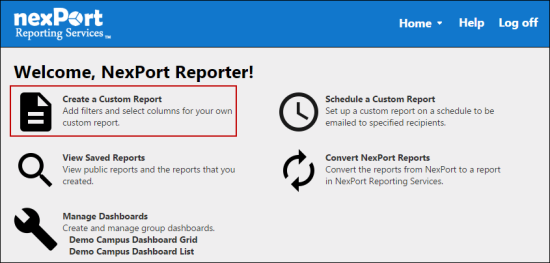
- The Create a Custom Report page is displayed.
- Do one of the following steps:
- In the upper-left corner, click the
 icon to view the flat report.
- In the upper-left corner, click the
 icon to view the aggregate report.
- Select the appropriate report type and organization filter.
-
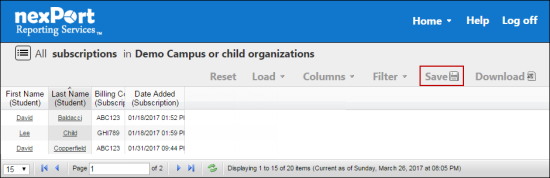
- In the menu, click Save.
-
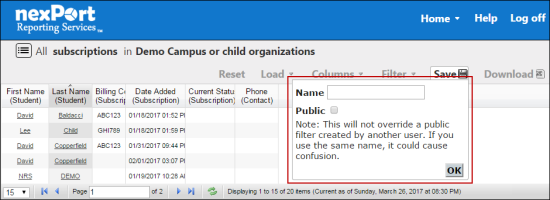
- In the Name box, enter a name for the custom report.
- Select the Public check box, if you need to make the filter available to anyone with permission to view or create reports within that organization.
Note:
This does not override a public filter created by another user. If you use the same name, then it can cause confusion. If you use the name of a report that you already created, it overwrites the old report.
- Click OK.
- A confirmation dialog box is displayed with the “Are you sure you would like to save the report?” message.
- Click OK.
- The custom report is saved.
 Related Topics
© NexPort Solutions 2017. All Rights Reserved.