Manage Columns (Flat Report Mode only)
You can personalize the view of your custom reports by using the column functionality. NRS provides several options to choose the optimal way to display the custom report.
Note:
You can manage column functionality only for flat reports.
For more information about flat report, see Create Custom Reports.
This topic includes:
Add a column
You can add columns to your custom report.
To add a column:
- On the NRS homepage, click Create a Custom Report.
-
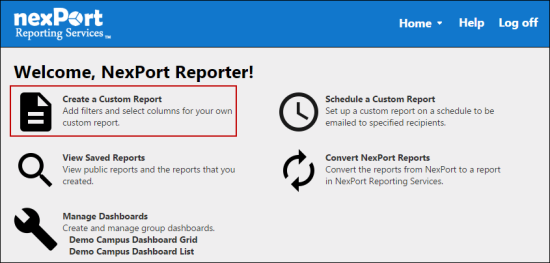
- The Create a Custom Report page is displayed.
- In the upper-left corner, click the
 icon to view the flat report.
- In menu, click Columns.
- The list of column properties are displayed.
Note:
You need to expand the properties to add columns or sub-columns.
-
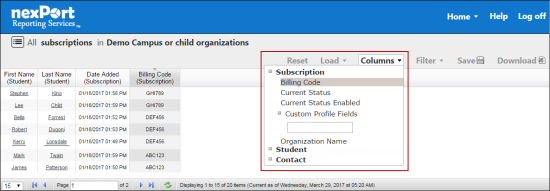
- Select the column that you need to be displayed for your custom report.
- The column is displayed in the custom report area.
Note:
Some of the column names appear with a search box. Type the first few characters of the column fields that you need to search. NRS populates matching results, select the column fields that need to be displayed in your custom report. For example, if you need to display custom profile fields in a custom report. NRS populates matching results such as, Birthday, Id Number, and other custom profile fields.
Resize a column
You can resize a column by shrinking or widening the width.
To resize a column:
- Click a column that you need to resize.
- Click one of the column handles, and then drag the column to the required size.
- The column is resized.
Auto-size a column
You can auto-size a column, if more data to be accommodated in a column. Auto-sizing resizes the column width to expand or contract to the column content.
To auto-size a column:
- Click a column that you need to auto-size.
- Double-click the edge of the column handle to auto-size the column.
- The column is auto sized.
Reorder a column
You can change the order of columns when you create a custom report.
To reorder a column:
- Click a column that you need to reorder.
- Drag and drop the column to the position you need.
- The column is reordered to a new position.
Sort a column
You can sort a column in one of the following ways:
- Alphabetical or chronological (depending on the column type)
- Ascending, descending, or original (default) order
To sort a column:
- Click a column that you need to sort.
- Click the column header when the
 icon or the
  icon appears.
- The column is sorted.
Remove a column
You can remove a column from a custom report or from the Columns list.
To remove a column from the custom report:
- Hover over a column that you need to remove.
- Click the
 icon that appears next to the column name.
- The column is removed.
To remove a column from the Columns tab:
- In the upper-right corner, click Columns.
- The list of column properties is displayed.
- Click the highlighted column in the list of column categories.
- The column is removed.
 Related Topics
© NexPort Solutions 2017. All Rights Reserved.